How to Set Ethernet to WiFi 3 Best Method
In many homes, offices, hostels, and workplaces, internet access is still provided through an Ethernet cable. Ethernet connections are known for their stability and speed, but they also come with a limitation. You can only connect devices that have an Ethernet port, and you are tied to a fixed location. This becomes a problem when you want to use smartphones, tablets, or multiple laptops at the same time.
Because of this, many users look for a simple and reliable way to understand how to set ethernet to wifi. Converting a wired internet connection into wireless WiFi allows you to share the same internet connection with multiple devices and enjoy freedom of movement.
This article explains the concept clearly, covers different practical methods, and helps you choose the right solution based on your situation.
What Does “Setting Ethernet to WiFi” Mean
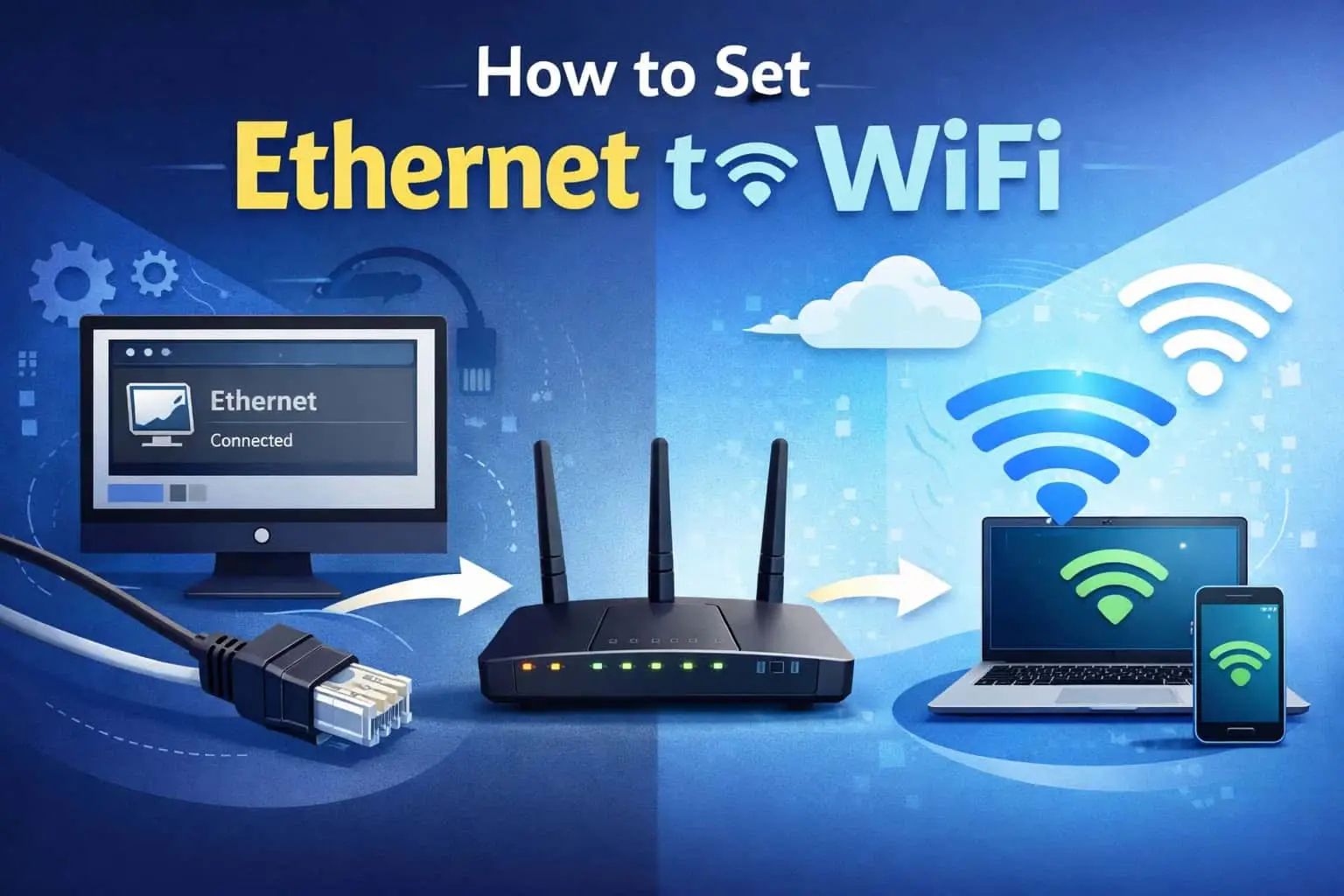
Setting Ethernet to WiFi does not mean changing or modifying the cable itself. It means using a device that takes internet from an Ethernet cable and then broadcasts it as a WiFi signal.
In simple terms:
The Ethernet cable brings internet to a device
That device acts as a bridge
The bridge converts wired internet into wireless WiFi
Once this is done, other devices such as mobile phones, laptops, smart TVs, and tablets can connect wirelessly without needing a physical cable.
Why People Convert Ethernet to WiFi
There are several practical reasons why users want to convert Ethernet to WiFi.
First, most modern devices do not support Ethernet ports. Smartphones and tablets rely completely on WiFi. Second, WiFi offers convenience. You can move freely within the coverage area without disconnecting cables.
Some common reasons include:
Sharing one internet connection with multiple devices
Avoiding long and messy cables
Creating internet access in rooms without routers
Using internet in hotels, hostels, or temporary offices
Understanding these needs helps in choosing the correct method.
Method 1: Using a WiFi Router (Best Long-Term Solution)
Using a WiFi router is the most stable and professional way to set Ethernet to WiFi. Routers are designed specifically for this purpose and can handle multiple devices efficiently.
How It Works
The Ethernet cable from your internet provider or modem is connected to the router. The router then distributes this internet as WiFi signals.
Basic Steps
Connect the Ethernet cable to the router’s Internet or WAN port
Power on the router and wait for it to start completely
Connect your phone or computer to the router
Open the router’s settings page using its IP address
Set a WiFi network name and password
Once the setup is complete, your Ethernet connection becomes a WiFi network.
Advantages of This Method
Strong and stable internet connection
Better range and coverage
Supports many devices at the same time
Strong security options
This method is ideal for homes, offices, and permanent setups.
Method 2: Using a Windows Laptop or Desktop as a WiFi Hotspot
If you do not have a router, a Windows computer can be used as a temporary solution. Most modern Windows systems allow you to share an Ethernet connection as a WiFi hotspot.
Requirements
A Windows 10 or Windows 11 computer
A working WiFi adapter
An active Ethernet internet connection
How It Works
The computer receives internet through Ethernet and then broadcasts it as a WiFi hotspot.
Basic Steps
Plug the Ethernet cable into the computer
Open system settings and go to Network and Internet
Enable Mobile Hotspot
Choose Ethernet as the source connection
Set a WiFi name and password
Your computer will now act like a mini WiFi router.
Limitations
Limited WiFi range
Computer must stay powered on
Not ideal for many connected devices
This method is best for short-term or emergency use.
Method 3: Using a Travel Router or Ethernet to WiFi Converter
Travel routers are small devices designed specifically to convert Ethernet connections into WiFi networks. They are commonly used by travelers and professionals.
How It Works
You connect the Ethernet cable to the travel router, and the router creates a private WiFi network.
Why This Method Is Useful
Compact and portable
Easy to set up
Secure personal WiFi in shared environments
This option is perfect for hotels, hostels, PG accommodations, and temporary work locations.
Common Problems and Their Solutions
Even after understanding how to set ethernet to wifi, users may face some issues. Most of them are easy to fix.
No Internet on WiFi
This usually happens due to a loose cable or incorrect settings. Check the Ethernet connection and restart the router or device.
Slow Internet Speed
WiFi speed may reduce if too many devices are connected. Reduce the number of devices and keep them closer to the router.
Frequent Disconnections
Signal interference or outdated firmware can cause instability. Updating firmware and changing WiFi channels often helps.
Security Tips When Sharing Ethernet as WiFi
Security is very important when converting Ethernet to WiFi, especially in shared places.
Follow these basic rules:
Always use a strong WiFi password
Enable modern encryption like WPA2 or WPA3
Avoid open or public WiFi without protection
Change default router login credentials
These steps protect your network from unauthorized access.
Choosing the Right Method for Your Needs
Each method serves a different purpose.
For permanent and stable use, a WiFi router is the best choice
For temporary or emergency use, a PC hotspot works well
For travel or shared spaces, a travel router is ideal
Choosing the right method depends on how long you need the connection, how many devices will connect, and how much mobility you require.
Conclusion
Learning how to set ethernet to wifi gives you flexibility and control over your internet usage. A wired connection no longer needs to limit you to one device or one place. With the right setup, you can convert Ethernet into WiFi and enjoy wireless internet across all your devices.
Whether you choose a router, a computer hotspot, or a travel router, the core idea remains the same. Take wired internet and share it wirelessly in a secure and reliable way. By following the methods explained in this guide, you can confidently set up Ethernet to WiFi and make better use of your internet connection.